
Brand atmosphere image: a street above the sea, suggesting the feeling before departure. Not a destination photograph and not a traveler’s real journey.

From before you leave, through the days after.

Let Tour Companion stay with you at every stage of the journey.

Brand atmosphere image: a warm street and coast, suggesting anticipation before departure. Not a destination photograph.

Before the journey | A good journey starts here

Before you leave, scan the QR Code from your agency to sign in to Tour Companion. Once you are signed in, you can look at the journey details already opened. You do not need to join the tour again.

The background is a brand atmosphere image. It is not a licensed destination photograph, and it does not represent any traveler’s journey.

Step 1 / 3

Get the QR Code from your agency

Your agency gives you a QR Code that is yours alone. Before you leave, use it to sign in to Tour Companion and connect to your tour.

The most important point in this step

This website does not show a usable QR. The diagram only means the code comes from your agency. The picture cannot sign you in, and you should not forward it.

How it works · not an actual App screenYour agencyyour QR Code
Step 2 / 3

Scan the QR Code to sign in

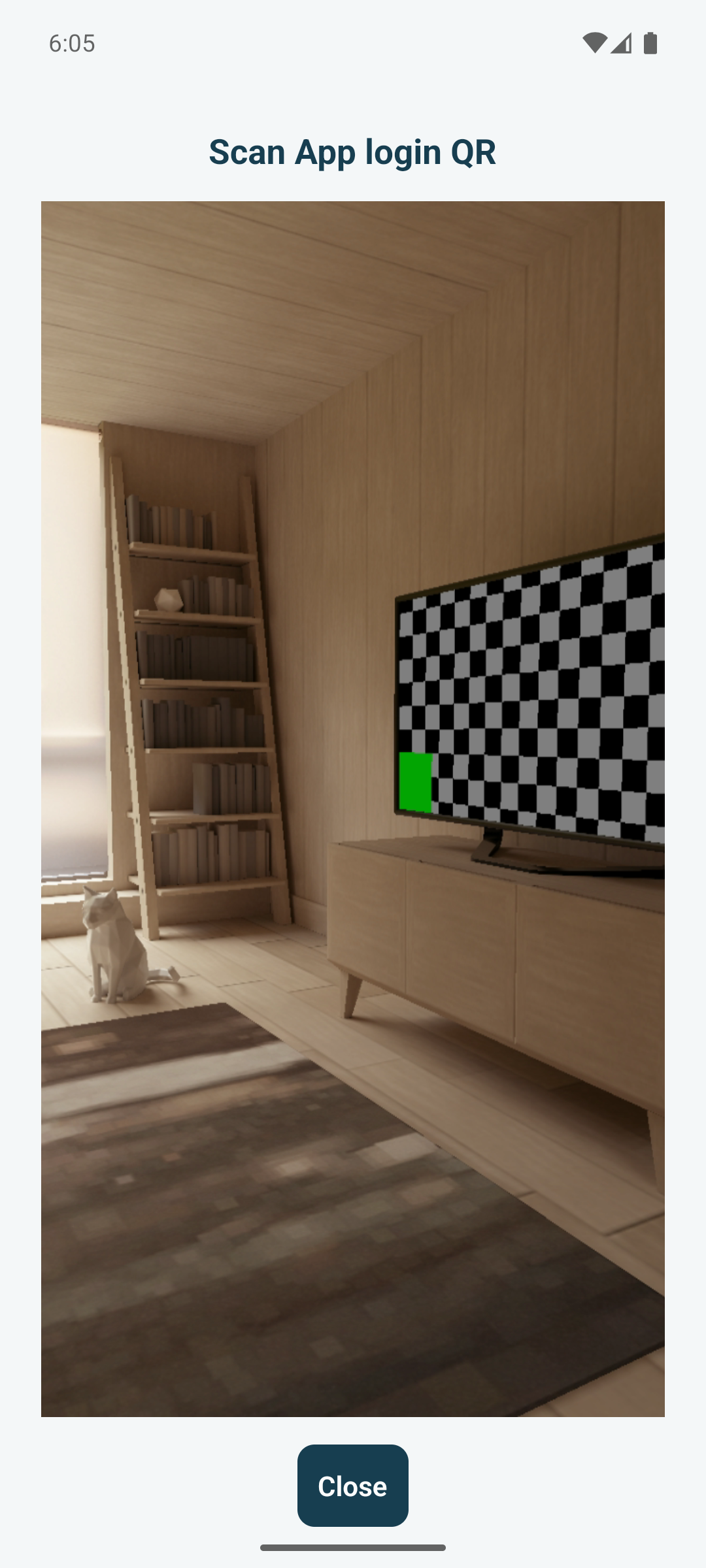
Open Tour Companion and, on the opening screen, scan the QR Code from your agency. That signs you in and connects your tour in one step. The App then opens your journey. You do not need to join the tour again, and you do not scan a second time.

The most important point in this step

Once you are signed in, your tour is already connected. You do not need to join again, and you do not scan again. The screen below is only the scan entry, not a finished sign-in.

Shared scan entry
Actual App emulator screenshot · the camera shows a virtual room; no valid QR was scanned or redeemed. This is not evidence of successful pairing.

Step 3 / 3

Look at My journey

After you have signed in, My journey is where you can look ahead at the itinerary and meeting details your agency has already opened. This website has no real screen for this step, so the panel only says what to look for.

The most important point in this step

This is a concept. Use the journey details that actually open in the App. Do not treat the panel as your meeting time or place.

In preparation / concept only

  • Opened itinerary
  • Meeting time
  • Meeting place
Brand atmosphere image: a coast and distant hills, suggesting the journey itself. Not a photograph of a tour route.

During the journey | Company for every mile

On the day, open Tour Companion and read your tour and today’s plan. When your guide starts speaking, travelers who have already joined listen by following the App. You do not scan the guide’s QR Code again. Connect and listen by following the prompts on the screen.

The background is a brand atmosphere image. It is not a licensed destination photograph, and it does not represent any traveler’s journey.

Step 1 / 4

Open the App and read today’s plan

Open Tour Companion and look at your tour, today’s opened itinerary, the meeting time, and the important notes. You do not need to use an XE300 or another WiFi device before you can read them.

The most important point in this step

There is no verified screen of today’s itinerary yet. The panel is a concept and cannot stand in for what the App actually shows.

In preparation / concept only

  • Your tour
  • Today’s plan
  • Important notes

Step 2 / 4

Listen to your guide in the App

When your guide starts speaking, travelers who have already joined follow the App’s usual path into listening. You do not scan the guide’s QR Code again. Connect to the tour network and start listening by following the prompts the App actually shows.

The most important point in this step

Follow the prompts on the screen. If the App does not ask you to scan, you do not need the guide’s QR Code.

How it works · not an actual App screenAlready on this tourFollow the App

Step 3 / 4

About the tour’s network device

Some tours use the Tour Companion WiFi device to help with on-site commentary. Connect only when your guide says this group is using that device. The XE300 is a lesson about the device and the network. It is not something every traveler must operate, and it is not required for the App’s other features.

The most important point in this step

A WiFi message that says there is no internet does not by itself mean the commentary cannot be heard. First stay on the network your guide named. Do not switch away only because of that message.

How it works · not an actual App screenOnly if your guide says soTour network

Step 4 / 4

Manage listening and the journey details

While you listen, you can manage your own speaker and read the details of this journey. Leaving this listen, leaving the journey, and signing out are three different actions. Leaving this listen ends only the part you are hearing. Leaving the journey exits the saved journey. Signing out ends the signed-in account.

The most important point in this step

After your guide ends this part, you can stay in the journey and wait for the next one. If you open the App again and need to reconnect, follow the prompt on the screen at that time. An earlier screen does not prove you are still listening.

How it works · not an actual App screenLeave this listenLeave the journeySign out

If the usual connection does not work

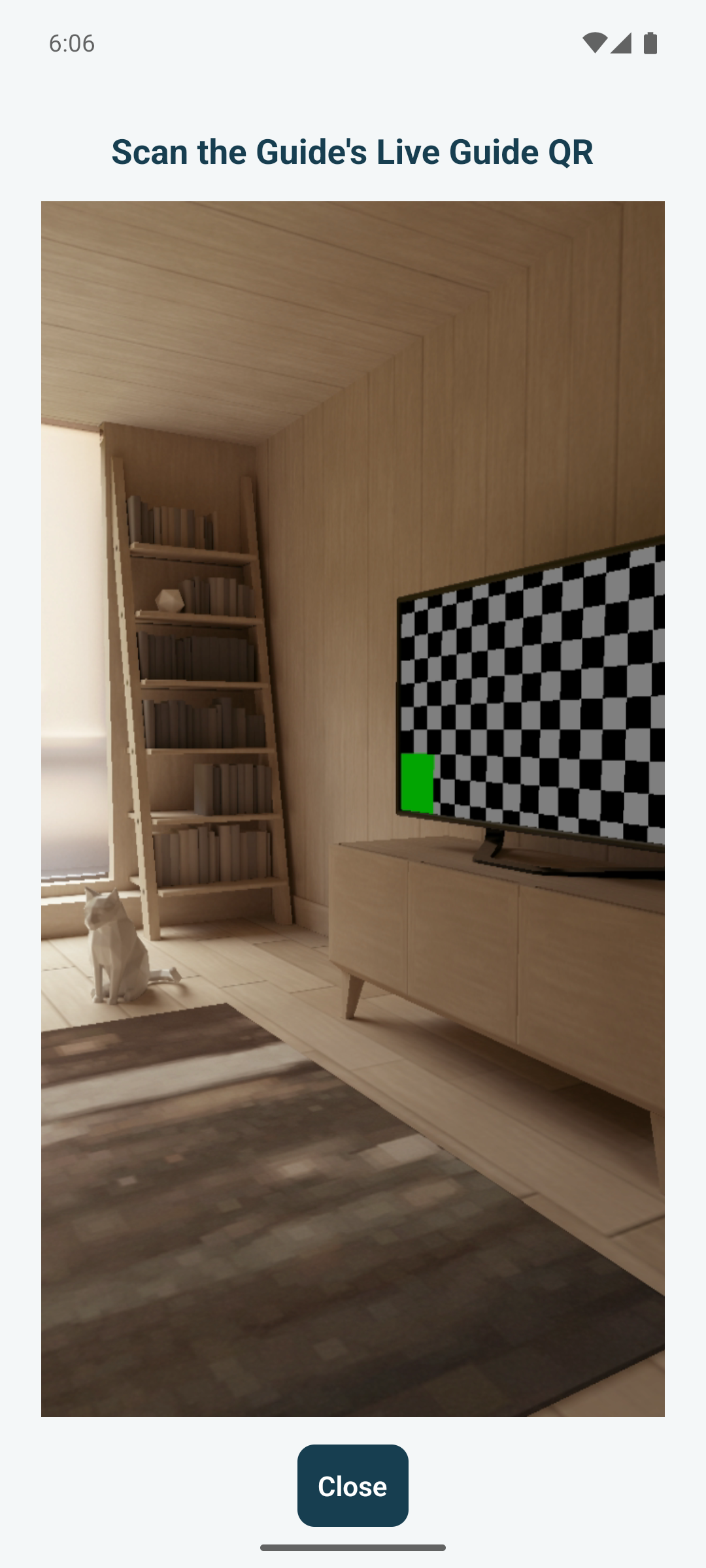
Use this only when the usual way to connect cannot be used. Only then does your guide offer a backup QR Code. When you can already listen in the App, do not scan.

  1. Your guide shows the backup QR Code
  2. Travelers who need help scan it when asked
  3. The App then prompts you to join the local network used for on-site commentary

The most important point in this step

Finishing the scan does not mean you are connected, and it does not mean you have started listening. Keep following the App.

Traveler scan entry
Actual App emulator screenshot · the camera shows a virtual room; no valid QR was scanned and no joining was completed.This is an older scan screen for illustration. Follow the prompts in the current App.
Brand atmosphere image: sunset over the sea, suggesting memory after a journey. Not a photograph of an album or a map.

After the journey | It ends, and it can continue

The next three items describe the experience intended after a journey ends. They are not verified or released on this website, and they cannot be used yet.

The background is a brand atmosphere image. It is not a licensed destination photograph, and it does not represent any traveler’s journey.

Step 1 / 3

My journeys

After the journey, My journeys is where a completed journey, its dates, and the places visited could be reviewed.

The most important point in this step

In preparation. This is a concept, not a page you can open now, and it contains no real traveler’s journey.

In preparation / concept only

  • Completed journey
  • Travel dates
  • Places visited

Step 2 / 3

Travel Memory

Travel Memory is for looking back over the route, the places visited, and the memories of this journey.

The most important point in this step

In preparation. This is a concept, not a released feature, and it does not replace your own records.

In preparation / concept only

  • Route
  • Places visited
  • Travel memories

Step 3 / 3

The next journey

You would be able to browse the next departure and travel products your own agency recommends, as a reference for another trip.

The most important point in this step

In preparation. This is a concept. You cannot book or operate it here, and the page has no real departure.

In preparation / concept only

  • Agency recommendation
  • Next departure
  • Travel products

This is a website tutorial. It does not scan QR codes, connect to WiFi, or transmit audio. Follow the App and your phone’s actual status.

View the original App images

Localized original emulator screenshots are entry/status references only, not evidence that this step was completed.